Saturday, January 20, 2007

UNIX status commands on Solaris

Proc tools:
  • pflags Print the /proc tracing flags, the pending and held signals, and other /proc status information for each lwp in each process.
  • pcred Print or set the credentials (effective, real, saved UIDs and GIDs) of each process.
  • pldd List the dynamic libraries linked into each process, including shared objects explicitly attached using dlopen(3C). See also ldd(1).
  • psig List the signal actions and handlers of each process. See signal.h(3HEAD).
  • pstack Print a hex+symbolic stack trace for each lwp in each process.
  • pfiles Report fstat(2) and fcntl(2) information for all open files in each process. In addition, a path to the file is reported if the information is available from /proc/pid/path. This is not necessarily the same name used to open the file. See proc(4) for more information.
  • pwdx Print the current working directory of each process.
  • pstop Stop each process (PR_REQUESTED stop).
  • prun Set each process running (inverse of pstop).
  • pwait Wait for all of the specified processes to terminate.
  • ptime Time the command, like time(1), but using microstate accounting for reproducible precision. Unlike time(1), children of the command are not timed.
Other commands:
  • arch display system architecture (i86pc)
  • uname print name of current system (SunOS)
  • pagesize display the size of pages of memory
  • iostat report I/O stats for terminal, disk, tape, etc
  • vmstat report virtual memory statistics
  • mpstat report CPU statistics
  • busstat report bus-related support statistics
  • lsof list open files (sockets (lsof -i), etc.) Introductory lsof examples
  • nohup run a command immune to hangups
  • kstat display kernel statistics
While navigating manpages, note that Solaris uses more to view them, which is supremely annoying. Use less with export PAGER="less" (tip found here).

Thursday, January 04, 2007

HOWTO Starcraft/Brood War on Ubuntu Linux Edgy Eft with Wine

One of the (very very very) few things for which I use my Windows partition anymore is playing Starcraft /Brood War. Of course, as anyone that dual-boots knows, restarting your machine just for one Windows application and then back to Linux is highly annoying and time-consuming. One solution to running Windows apps on Linux is Wine, which I will describe how to configure to play SC/BW in this post. I'm using Ubuntu 6.10 (Edgy Eft). Thanks to JTerry for his help with this.

First, you're going to need a few things. Open a terminal and run sudo apt-get install wine to get wine. After that finishes, insert the Starcraft CD. cd to whatever cdrom drive you put the cd in (under the /media/ directory). Use Wine to setup SC with wine setup.exe. You'll get the install screen for SC -- enter your CD key and install the software. The SC executable will be installed under the path of ~/.wine/drive_c/Program\ Files/Starcraft/starcraft.exe. If you try and play SC now, you might notice that the sound does not work. Run winecfg and go to the Audio tab. Set Hardware Acceleration to Emulation. The sound should now work fine. If you want to play Brood War, read on; if not, skip to the next paragraph. Eject the SC CD and insert the BW CD. Again, cd to the appropriate /media/ directory and run wine setup.exe. To play SC/BW, run wine ~/.wine/drive_c/Program\ Files/Starcraft/starcraft.exe.

Playing online over Battle.net requires a little bit more work. First, you'll need the proper fonts that Battle.net uses... sudo apt-get install msttcorefonts for this. You'll also need the newest patch for Battle.net which updates BW to version 1.14. Get this patch here (other patches, for instance for regular SC, can be found here). Use wine to run the downloaded file, BW-114.exe. An updater should run, after which you'll be able to play online using Battle.net. It works, but all is not perfect -- the display of the Battle.net interface is kind of screwed up (it never refreshes when you change views). However, if you're familiar with the Battle.net interface you should be able to get into a game after which SC/BW runs without a hitch.

Some tips: tweak your mouse sensitivity and acceleration to play SC/BW. It runs at a low resolution and your cursor will be uncontrollably flying all over the place if you don't. Change this in System->Preferences->Mouse->Motion. Also, sometimes (rarely) the screen resolution doesn't change back to what you had it at before playing SC/BW. Change this in the System->Preferences->Screen Resolution menu. If you hear a lot of static from your speakers, try switching from OSS to ALSA in winecfg->Audio.

More information on this topic can be found at the Wine Application Database page for SC/BW.

Update: here's another good page on Ubuntu forums

Another update: yet another good page from the Ubuntu community detailing how to enable the 'no CD' patch

Monday, January 01, 2007

Why default settings on your wireless router is a BAD thing

Lots of people recognize that 802.11 wireless networks are really cool and want to have them. They go to Best Buy, grab a Linksys router, run home and, without going through the standard setup, plug the router into their network connection and turn it on. Hopefully you are not one of these people because these people leave their router completely vulnerable to whoever wants to take control of it.

Here, I will show how to discover one of these networks, how to get in to it, and what you can do once you're in command. I will be using the Linksys WRT54GL as an example, but the lessons here are very applicable to other makes and models as well.

First, the discovery. You're going to need a tool like kismet for this. If you're on Ubuntu Edgy Eft (like me), a simple sudo apt-get install kismet will install it on your machine. If you don't have apt-get or a comprable tool (such as yum on Red Hat flavors), you'll have to download and compile it from source yourself. Once you have kismet, edit the /etc/kismet/kismet.conf file. Edit the line that begins with "source=" to whatever is appropriate. The first value should be what comes up after the Nickname section of this command: iwconfig | grep Nickname. The second value should be the desired wireless interface (something like eth1... also on that same line of the previous command) and the third value is whatever you want to name this interface. Mine is source= ipw2100,eth1,wireless. More info is in the README under "Capture Sources." Fire up kismet with sudo kismet. Any detected networks that have the "F" under Flags (and, with color enabled, the line should come up as red) are networks with factory-default settings. These routers are often named "linksys" or "NETGEAR" or the like. If you want to change around the interface in kismet, edit the /etc/kismet/kismet_ui.conf file.

Now that you have your target, log onto the network and (hoping that this isn't a honeypot) point your browser to 192.168.1.1 (this IP address may vary depending on the make and model of the network that you're hacking... NETGEAR routers, for example, are 192.168.0.1). When prompted for a username and password, enter admin/admin. These are factory-set values that can be found for other models by searching on the Internet. For example, here and here (and here for D-link and here for Belkin). Congratulations, you're in.

What to do now? Well, as far as the router is concerned, a lot of things. Change the broadcasted ESSID of the network to "lol u R h4cked!" under Wireless->Basic Wireless Settings. Enable a password in Wireless->Wireless Security so that the legitimate users of the network will not be able to log on. In Access Restrictions, set the router so that it ceases to operate for five hours on Tuesdays. Etc. Of course, there are more things that you could do by exploiting the actual network itself, but that's beyond the scope of this entry.

Saturday, December 30, 2006

HOWTO scrub iTunes' DRM off of your purchased music with QTFairUse

DRM sucks. A lot. Case in point: I just received a $25 dollar gift certificate from a loving relative who wanted me to buy some music. I summarily went to the iTunes Music Store and downloaded about twenty-five bucks worth of Cannibal Corpse songs. All was good, until I tried to play the songs on another music player. Surprise! The .m4p files are a iTunes-only, DRMed format. That is when I resolved to immediately blog about how to get around it (a mild form of protest, I know).

(Disclaimer: doing this may be violating the DMCA. But if you want to stick it to the man and protect your fair use rights, read on. Besides, the DCMA sucks, too.)

First, you're going to need Windows (sorry... I guess you could always use Wine or Virtualization inside Linux, but I don't have that set up yet -- I'm just dual-booting Ubuntu Edgy and Windows XP). Next, download QTFairUse which is a utility that will scrub the DRM from your music files. (There is also another utility for doing this called myFairTunes and an older one that doesn't work anymore called JHymn). Unzip the QTFairUse archive and launch the .exe file to start the program. Use the drag-and-drop interface to select which songs you want scrubbed and then click the button at the bottom to begin the conversion. You now have .m4a-format, DRM-free audio files!

UPDATE:
Neither of these programs work under Wine... neither are in the Wine Application DB... looks like I'll have to stick with Windows (ugh) for now...

QTFairUse throws a "ImportError: MemoryLoadLibrary failed loading win32api.pyd" when using the console version and an "ImportError: MemoryLoadLibrary failed loading win32gui.pyd" when using the GUI version

myFairTunes sets up fine but throws this error when I run the application under Wine: "install the Windows version of Mono to run .NET executables" ... searched Google and it seems like this is a long way from being fixed

UPDATE 2:
new links:
Be sure your computer is 'authorized' to play 'protected' files on iTunes or this won't work.

Thursday, December 21, 2006

Static IPs in Debian-based Linux

Here's a brief overview of how to set up an internet connection using a static IP address on Debian-based Linux systems. Most large networks nowadays use DHCP to get a user an IP address, but knowledge of static IP configuration can still be helpful in a lot of situations. First, edit the /etc/network/interfaces file as a superuser so that the entry for the desired interface looks something like this (replace x's with numeric values):

iface eth0 inet static # static, as opposed to dhcp... replace eth0 with desired interface
address xxx.xxx.xxx.xxx # ip address you want assigned to this computer
netmask xxx.xxx.xxx.xxx # subnet mask
network xxx.xxx.xxx.xxx # optional
broadcast xxx.xxx.xxx.xxx # optional
gateway xxx.xxx.xxx.xxx # gateway (usually router/firewall) ip address

Once you have done this, restart your network interfaces with sudo /etc/init.d/networking restart

The gateway can also be specified on the command line if it's not in the interfaces file: sudo route add default gw xxx.xxx.xxx.xxx The command netstat -nr can show the routes, including gateways, that the kernel is currently using.

To explicitly release a dhcp connection, do something like dhclient -r eth0

If your computer and network is set up correctly, you should now be able to ping your gateway and access sites on the internet by IP address. However, in order to access sites by name you need the help of DNS. Add entries to the /etc/resolv.conf file as a superuser in this format (you can have as many as you want):

nameserver xxx.xxx.xxx.xxx

Now, if you point your browser to a domain name like www.yahoo.com, you should be able to get there. Welcome to t3h 1nt3rw3b. You can also do all the above by accessing the System->Administration->Network menu.

Links:
Update (in light of ubuntu-users post and responses):
For switching from one interface configuration to another (assuming eth0 and correct /etc/network/interfaces):
  1. sudo ifdown eth0
  2. edit /etc/network/interfaces
  3. sudo ifup eth0
SIOCDELRT: No such process means something is screwy. You probably have the wrong number (i.e. gateway) somewhere. Haven't determined exactly what this means.

kiba-dock

kiba-dock (couldn't find the project page...) is an OSX-like dock that you can use to launch applications, and it also has some silly animations to go with it. I installed it on Ubuntu Edgy Eft 6.10 using the instructions here. As the poster mentions, it only works properly after you try and install the second time. Strange, but it works. If you're not running some fancy compositor-window manager like XGL/Compiz or AIGLX/Beryl, it might look pretty ugly (black boxes around everything, sometimes text doesn't show up, etc.). I'm using Beryl and it looks fine.

To use kiba-dock, drag icons onto the dock to be able to launch them from the dock. kiba-dock is, of course, completely customizable (colors, position on screen, physics, etc.) so if it's not immediately to your taste, you can change it.

To launch kiba-dock at startup go to System->Preferences->Sessions and under Startup Programs add kiba-dock.

Here's a video of kiba-dock in all its glory:

Tuesday, December 05, 2006

Bash prompt customization

Using old UNIX machines is a pain sometimes. The 10-year-old features just don't mesh with the current ones, and it just doesn't feel right. Also, the prompt might not display any useful information. Heresy, I say! Follow these steps to make yourself feel more at home. Some information taken from this article.

To get an Ubuntu-like prompt (assuming bash is installed):
  1. Edit the .bashrc file with an editor like vi
  2. Add this as the last line: export PS1='\u@\h:\w$ '
Other prompt configuration options:
  • \! History number of current command
  • \# Command number of current command
  • \d Current date
  • \h Host name
  • \n Newline
  • \s Shell name
  • \t Current time
  • \u User name
  • \W Current working directory
  • \w Current working directory (full path)
To get easy access to some obscure directory: alias [name]="cd [absolute directory path]"

You can also edit the .login file, which executes immediately when you log in. (It might go by a different name depending on the shell... see here for details)

Use set -o emacs (the default) or set -o vi to set your command line editing mode of choice.

And remember kids, don't forget to write the other users if on a public machine! (Or maybe talk, or wall if you're the admin).

More links

Thursday, November 30, 2006

Google hacking: maximize the effectiveness of your queries

Here's a bunch of cool stuff you can use to squeeze the most out of your Google experience (a lot of it gleaned from Google Hacks):

General queries:
  • "x y z" phrase: match the whole string as one
  • x (y OR z) boolean: match x and either y or z (same as x (y|z))
  • x -y negation: match x but not y
  • +the fuzz explicit inclusion: to prevent auto-ignore of common words (or put in quotes)
  • ~x synonyms: match x or words like x
  • x 1..100 number range: match x and any number between 1 and 100 (can also leave out one of the numbers to do a floor or ceiling)
  • for ** bell tolls full-word wildcards: match for, any 2 words, then bell and tolls
  • intitle:x search titles of web pages (use allintitle: to include all following words)
  • intext:html search only body text
  • inahchor:x search links' descriptive text
  • site:x search a certain website (does not understand subdirectories)
  • inurl:x search within urls
  • link:x return a list of pages that link to a certain page
  • cache:x return the cached copy of a page
  • filtype:x search for certain filename extensions (htm and html return different results)
  • related:x find pages related to x
  • info:x show information that Google has gathered about a page
  • phonebook:x search Google's phonebook for a certain number
  • define:x gives definitions for a word according to the web
  • movie:x search for a movie
  • music:x search for music
News:
  • source:x search for news from a specific source
  • intext:x search within text
  • intitle:x search within titles
Groups:
  • insubject:x searches posting subjects for query words
  • group:x search within a certain group
  • author:x search for posts by the author
Blogger:
  • blogurl:x searches a specific blog by its URL
  • inblogtitle:x search blogs titles
  • inposttitle:x search post titles
  • inpostauthor:x search by post author
Other things to remember/cool stuff:

Tuesday, November 21, 2006

HOWTO Sniffing AIM traffic on an open wireless network

If you are interested in seeing what people on an open wireless network are doing on AOL Instant Messanger (*ahem* I mean... for some legitimate, legal and ethical purposes, of course... *ahem*), then this will walk you through it. I'm using Ubuntu 6.06 as my OS.
  1. First, you're going to need a network traffic analyzer. Wireshark (formerly known as ethereal... Wikipedia explains the name change) is the standard for this: Enter sudo apt-get install ethereal on the command line to get it. Start it up as root (this should be an option under applications->internet).
  2. Next, change your wireless card to promiscuous mode: sudo iwconfig eth1 mode Monitor (of course, replace eth1 with whatever your wireless-enabled interface that you wish to listen on is).
  3. Click the "Show the capture options..." button in the top left corner of the ethereal GUI (it's the picture with a wrench on it). Select your wireless interface, check the promiscuous mode checkbox, and select any other options you want, but don't close the box yet.
  4. If you just ran the capture as is, you'd get all traffic on a wireless network. However, that can be a lot of stuff that you don't want. A little research on Google shows that Aim runs primarily on port 5190 and additional ports such as 13, 23, and 113. Specify that you only want to log packets that come through on these ports in the capture filter text box: tcp port 5190 or tcp port 23 or tcp port 113 or tcp port 13 (If you want other configurations, check Section 4.8 of the Wireshark User's Guide). Click the Start button to start the capture.
  5. You are now capturing any wireless packets that your interface receives. Ethereal will bring up a small dialog box showing you more detail about what's going on. Click stop to stop the capture.
  6. That's a lot of data. Use the filtering/analyzing tools that ethereal provides to help you sort out what's actually going on. One of the easiest/most useful things to do is right click on a packet of interest and select "Follow TCP Stream"... this will give you the transactions that happened between two points, perfect for reassembling an AIM conversation!

Saturday, November 04, 2006

Airsnort / WEP

Airsnort is the most widely used utility for cracking WEP. Get it on Ubuntu Dapper with sudo apt-get install airsnort. Here is a nice guide (with pictures!) to using airsnort on Linux. Airsnort uses an exploit described in this paper (postscript format) to obtain a WEP-encrypted password. Wikipedia has a more digestible summary of WEP flaws. wepcrack is another (and was the first) utility to implement the WEP exploit described above.

The way that Airsnort works is by passively monitoring all packets sent over a wireless network and then observing those packets for patterns it can exploit. The key to this is setting your wireless card to promiscuous mode: sudo iwconfig ethx mode Monitor. While you have this mode enabled, you will not be able to access the Internet.

One of the problems with monitoring traffic to crack WEP is if there is no traffic to montior in the first place! That is, the network isn't being heavily used. Solution: traffic injection. Aircrack-ng is a tool that supports this, among other things (homepage, tutorial, wikipedia page). Packet injection, however, is not a passive activity.

Books on the subject (links to Amazon.com pages):
TODO: Add sections about hidden SSIDs, MAC address filtering
http://www.cs.wright.edu/~pmateti/InternetSecurity/Lectures/WirelessHacks/Mateti-WirelessHacks.htm#_Toc77524653
http://docs.lucidinteractive.ca/index.php/Cracking_WEP_and_WPA_Wireless_Networks

Wednesday, November 01, 2006

Gang of Four/Design Patterns

If you're into software engineering, especially reusable object-oriented software engineering, you're a big fan of the "Gang of Four" book, "Design Patterns." Here's a quick outline of what's in it:

Creational Patterns
  • Abstract Factory: Provide an interface for creating families of related or dependent objects without specifying their concrete classes.
  • Builder: Separate the construction of a complex object from its representation so that the same construction process can create different representations.
  • Factory Method: Define an interface for creating an object, but let subclasses decide which class to instantiate. Factory Method lets a class defer instantiation to subclasses.
  • Prototype: Specify the kinds of objects to create using a prototypical instance, and create new objects by copying this prototype.
  • Singleton: Ensure a class only has one instance, and provide a global point of access to it.
Structural Patterns
  • Adapter: Convert the interface of a class into another interface clients expect. Adapter lets classes work together that couldn't otherwise because of incompatible interfaces.
  • Bridge: Decouple an abstraction from its implementation so that the two can vary independently.
  • Composite: Compose objects into tree structures to represent part-whole hierarchies. Composite lets clients treat individual objects and compositions of objects uniformly.
  • Decorator: Attach additional responsibilities to an object dynamically. Decorators provide a flexible alternative to subclassing for extending functionality.
  • Facade: Provide a unified interface to a set of interfaces in a subsystem. Facade defines a higher-level interface that makes the subsystem easier to use.
  • Flyweight: Use sharing to support large numbers of fine-grained objects efficiently.
  • Proxy: Provide a surrogate or placeholder for another object to control access to it.
Behavioral Patterns
  • Chain of Responsibility: Avoid coupling the sender of a request to its receiver by giving more than one object a chance to handle the request. Chain the receiving objects and pass the request along the chain until an object handles it.
  • Command: Encapsulate a request as an object, thereby letting you parametrize clients with different requests, queue or log requests, and support undoable operations.
  • Interpreter: Given a language, define a representation for its grammar along with an interpreter that uses the representation to interpret sentences in the language.
  • Iterator: Provide a way to access the elements of an aggregate object sequentially without exposing its underlying representation.
  • Mediator: Define an object that encapsulates how a set of objects interact. Mediator promotes loose coupling by keeping objects from referring to each other explicitly, and it lets you vary their interaction independently.
  • Memento: Without violating encapsulation, capture and externalize an object's internal state so that the object can be restored to this state later.
  • Observer: Define a one-to-many dependency between objects so that when one object changes state, all its dependents are notified and updated automatically.
  • State: Allow an object to alter its behavior when its internal state changes. The object will appear to change its class.
  • Strategy: Define a family of algorithms, encapsulate each one, and make them interchangeable. Strategy lets the algorithm vary independently from clients that use it.
  • Template Method: Define the skeleton of an algorithm in an operation, deferring some steps to subclasses. Template Method lets subclasses redefine certain steps of an algorithm without changing the algorithm's structure.
  • Visitor: Represent an operation to be performed on the elements of an object structure. Visitor lets you define a new operation without changing the classes of the elements on which it operates.
There's also thourough Wikipedia coverage of the topic: Design Patterns

Monday, October 30, 2006

Streamripper

For all of your streaming audio ripping needs... Streamripper works, give or take a few seconds off either end of the audio. If this annoying misbehaviour happens to you, you'll have to get down and dirty with the options. And remember kids, installing it is a simple sudo apt-get install streamripper on Ubuntu! The manpage is helpful, with a lot of examples for common slip-ups.

Links:

Compression: gzip, zip, bzip2

Which compression tool is the best? Of course, there is no "best tool" -- there are different tools for different jobs. It won't matter for compression of trivial data which method you choose, but when you start handling gigabytes of data, it might be prudent to check some of the following links. This is just a sample of all the compression algorithms out there, of course, and is skewed towards ones used more often on Linux.

General info links (to Wikipedia):

  • Data compression
  • ZIP -- .zip extension, zip and unzip commands; analogous to tar and gzip; used more on Windows
  • Gzip -- .gz extension, gzip and gunzip commands
  • Bzip2 -- .bz2 extension
Comparison links:

PGP, especially GnuPG

You're a paranoid freak that thinks that everyone is out to get you. Good, because they are if you live in the freedom-loving US of A. Therefore, you need to somehow encrypt your messages to make sure that only yourself and the intended recipient see the message. GnuPG to the rescue!

Very Short Intro to PGP:
PGP (Pretty Good Protection) uses public key encryption. Public key encryption uses a public key and a private key. A key generated by person A has both a public and a private component. Person A can distribute his public key freely, but his private key is protected by a passphrase that he and only he knows (hopefully) that was given at the time of the creation of the key. Others can use this public key to encrypt messages that only he can decrypt and read with the corresponding private key. Digital signatures work in the opposite direction. Person A can sign messages with his private key and others can authenticate that it was person A that sent it by decrypting the message with the corresponding public key. GnuPG is an implementation of this security scheme.

Options:
  • gpg --gen-key Create a key (all the default settings are fine); it will prompt for type of encryption algorithm (merits of each: DH vs RSA FAQ), keysize, key expiration date, name, comment and email, and finally, the passphrase used to protect your private key -- DO NOT FORGET OR GIVE OUT OR INSECURELY TRANSMIT YOUR PASSPHRASE!!! it will then generate some random bytes and ask you to play around with the mouse/keyboard while doing so to create more entropy
  • gpg --export -- export a key to a file (if you don't specify -o and a filename, it might corrupt the output on your terminal... just a warning); publish this for people to get your public key in order to be able to encrypt messages that you can decrypt with your private key
  • gpg -s <Data> to sign a document; this will create a <Data>.gpg file
  • gpg -se <Data> to both sign and encrypt a document; this will create a <Data>.gpg file
  • gpg -d <data> to decrypt the data; you can also specify a path with -o to redirect it to somewhere besides stdout
Links:

Utilities already installed on Ubuntu Dapper (6.06):
  • gpg -- Command line tool
  • gpgv -- Used to verify signatures against a trusted keyring
  • gpgsplit -- Split OpenPGP messages or keyrings into their component packets

Saturday, October 21, 2006

Linux PCI Wireless cards (and the bcm43xx driver)

It's a pain in the butt when manufacturers of PCI wireless cards don't release a driver to go with their hardware. Case in point: broadcom, whose card I purchased. Luckily, there is a hacked driver available from the community.

Links:

Note to self: whatever I do, do NOT use ndiswrapper for wireless drivers. All the kernel hackers tell me it's bad... and, they were right. I believe it attempts to load the Windows driver on top of a layer that enables the cooperation of the hardware and the Windows driver. When I tried to use it, it crashed GNOME. Grrr...

The jury's out on whether this actually works or not (I have yet to get this desktop in range of a usable wireless signal) but I can iwlist eth0 scan for stuff and get results back so I'm optimistic...

Update: this thing works (most of the time). Sometimes it will inexplicably lose the signal and I'll have to connect again. Not the biggest deal in the world, but still pretty annoying.

Monday, October 16, 2006

Databases: which one to chose?

A rundown of databases from a qualified source:
  • Oracle: everyone knows it, functionality for just about everything but doesn't do anything well
  • SQL Server: The poor man's Oracle: not as much concurrency, better user interface
  • Access: WORST!!!! No concurrency control
  • DB2: Faster than Oracle, UI tools and SQL is not as robust as Oracle's
  • Sybase: Good, but dying out because of market share
  • Informix: Very good, but bought out by IBM and integrated into DB2 (prof's favorite)
  • MySQL: Up until 5 no support for a lot of things like foreign keys and indexing, free
  • PostgreSQL: Robust database, free
  • There exist other, specialized databases for streaming data
The free ones: MySQL vs PostgreSQL:
  • MySQL:
    • Larger development community
    • Just a tiny bit friendlier
  • PostgreSQL:
    • 5 years ahead of MySQL (but MySQL is catching up fast)
    • Perhaps able to handle double the data?
    • Data type storage more optimized
    • Better for update-intensive work (writes)
Other advice:
  • Cache large/popular files: look at Apache's cache setup
  • Verify that files have type, non-virus integrity
Links:

Thursday, October 12, 2006

s5: an open-source alternative to Powerpoint

s5 is an open-source slideshow alternative (down with ppt!). It uses Javascript to drive the presentation of XHTML divs (which represent the seperate slides) and CSS to tie the view together. Here are some links:
Here's how to use it: All of the content is placed in a file at the root of the s5 directory (the example that comes with the .zip is called intro.html). Launch this in a browser to start the presentation. Another file to edit (if you want to customize the layout) is s5/ui/default/pretty.css. Otherwise, it's probably a good idea to leave the files alone if you value a working presentation.

Sunday, September 24, 2006

Linux Command Line Odds and Ends

Here are some useful Odds and Ends... most are related to command line stuff, some not; whatever, enjoy. Most of these came from either scouring the web, or Learning the Bash Shell or Learning Red Hat Enterprise Linux and Fedora.

Job Control
  • kill %<PID> kill a process
  • kill -QUIT %<PID> kill a process, a bit stronger
  • kill -KILL %<PID> unconditionally kill a process
  • fg bring a background job into the foreground
  • jobs list jobs running
  • ps process information

File permissions (owner, group, others)
  • 0 ---
  • 1 --x
  • 2 -w-
  • 3 -wx
  • 4 r--
  • 5 r-x
  • 6 rw-
  • 7 rwx

Globbing
  • * matches zero or more characters
  • ? matches any one character
  • [abc...] matches any of the characters specified
  • [a-z] matches any character in the specified range
  • [!abc...] matches any character other than those specified
  • [!a-z] matches any character not in the specified range
  • ~ home directory of current user
  • ~userid home directory of a user
  • ~+ current working directory
  • ~- previous working directory

Quotes
  • 'xxx' interprereted literally, variables not substituted
  • "xxx" interprereted literally, variables ARE substituted
  • `xxx` output of xxx command replaces it


Command line special characters
  • # comment
  • ; command seperator
  • & run in background
  • \ command continued on next line
  • | pipe

Input/Output Redirectors
  • prog > file stdout to file
  • prog 2> file stderr to file
  • prog >> file concatenates stdout to file
  • prog 2>> file concatenates stderr to file
  • prog > file 2>&1 stdout and stderr to file
  • prog >> file 2>&1 concatenates stdout and stderr to file
  • prog < file stdin from file
  • prog << text reads stdin until a line matching text is found, then EOF posted ("here document")
  • prog | prog2 pipe stdout
  • prog 2>&1 | prog2 pipe stdout and stderr

Command Line Movement
  • Ctrl+Shift+N open new console window
  • Crtl+Alt+F[1-7] go to virtual console 1-6 or X(7)
  • Ctrl+Alt+Backspace stop X and go to console
  • Alt+B Back one word
  • Alt+F Forward one word
  • Ctrl+A Beginning of line
  • Ctrl+E End of line
  • Alt+D Delete word |------------->X
  • Ctrl+D Delete char
  • Ctrl+K Delete |------------->X
  • Ctrl+U Delete X<-----------|
  • Ctrl+L Clear screen
  • Ctrl+Y UNDO
  • ESC+. Insert last word of previous command
  • TAB Possible completions

IRC
  • /server join a server
  • /join join a channel
  • /quit quit the server
  • /close close the current screen
  • /part leave the current channel
  • /partall leave all channels
  • /msg msg a user with a new window
  • /notice msg a user without a new window
  • /query force a window open to msg a user
  • /chat DCC with a user
  • /dns dns lookup for a user
  • /ping ping a user
  • /me *** does something
  • /whois query whois for a user

Ctrl Keys
  • Ctrl+C intr: stop current command
  • Ctrl+D eof: end of input
  • Ctrl+\ quit: stop current command (if Ctrl+C doesn't work)
  • Ctrl+S stop: halt output to screen
  • Ctrl+Q resume output to screen
  • Ctrl+Z suspend current command (works well with bg, fg and jobs)

Escape Sequences
  • \a alert (bell)
  • \b backspace
  • \c omit final newline
  • \E escape character
  • \f formfeed
  • \n newline
  • \r return
  • \t tab
  • \v vertical tab
  • \xxx ASCII in octal
  • \\ backslash
Tar: tarball options
  • -c create
  • -r append
  • -t list contents
  • -x extract
  • -a append files
  • -v verbose
  • -z zip/unzip
  • -f use filename
  • Oft-used:
    • tar -cf foo.tar foo; gzip foo.tar
    • gunzip bar.tar.gz; tar -xvf bar.tar

Saturday, September 23, 2006

Python Bookmarks, Tricks, Tips, Gotchas

Python = Best Language EVAR! 'nuff said. Here are some Bookmarks, Tricks, Tips, and Gotchas that I've compiled:

BOOKMARKS

TRICKS

"dictionary comprehensions"
>>> dict((x, None) for x in [1,2,3])
{1: None, 2: None, 3: None}

Running a script in an interactive session
>>> import sys
>>> sys.argv = ["spam.py", "one", "two", "three"]
>>> execfile("spam.py")

Ternary if else statement (2.5 only)
x = true_value if condition else false_value

"switch" statement using dictionary
def function_1 (...):
...
functions = {'a': function_1,
'b': function_2,
'c': self.method_1, ...}
func = functions[value]
func()

list comprehension with multiple ifs/fors
>>> result = [x for x in range(10) if x % 2 == 0 if x % 3 == 0]
>>> result
[0, 6]
>>> result = [ x*y for x in range(10) if x%2 == 0 for y in range(10) if y % 3 == 0]
>>> result
[0, 0, 0, 0, 0, 6, 12, 18, 0, 12, 24, 36, 0, 18, 36, 54, 0, 24, 48, 72]

turn a list into a string and back again
>>> ' '.join(['a', 'b', 'c'])
'a b c'
>>> _.split()
['a', 'b', 'c']

more "mathy" numeric boolean comparison
>>> 4<6<8>>> 1<2<3<4<5>4>3>2>1
True

any() and all() (2.5 only)
>>> any([False, False, False])
False
>>> any([False, False, True])
True
>>> all([True, True, False])
False
>>> all([True,True,True])
True

switch values without a temporary variable
>>> a,b = b,a

Drop into a python debugging session when you hit this line
import pdb ; pdb.set_trace()

Zen of Python easter egg:
>>> import this

Reverse a string:
>>> 'string'[::-1]
'gnirts'

Quicksort in three lines of code (pure propaganda piece, don't use in real code... from Python Cookbook, p.215)
def qsort(L):
if len(L) &lt;= 1: return L
return qsort([lt for lt in L[1:] if lt &lt; L[0]]) + L[0:1] + qsort([ge for ge in L[1:] if ge >= L[0]])

Create a 3-D array initialized to 1(when working with large arrays, always use Numeric)
import Numeric as N
a = N.empty(2*3*4)
for i, x in enumerate(a): a[i] = 1
a = N.reshape(a, (2,3,4))

Enumerate and zip at the same time
for (i,x),y,z in zip(enumerate(a),b,c): print i,x,y,z

TIPS (code samples taken from Dive Into Python)
  • use k in d instead of k in d.keys() for checking for a key in a dictionary (the former is a built-in call to C code and a O(1) operation rather than a Python module with O(n)
  • enumerate(seq) returns index/value pair for a sequence: use it in for loops when you need both values (NEVER use len(range(seq)))
  • Introspection: dir(obj) returns a list of all attributes of obj; vars(obj) returns a dictionary of the same (incl. the values of those attributes); don't forget about locals() and globals(), either
  • isinstance(obj, class) tells whether obj is an instance of class... use it instead of if type(X) == type(Y)
  • callable(obj) returns boolean indicating weather the object is callable or not
  • getattr(x, 'y', default) is the reflection-y way of doing x.y
  • Assign multiple values at once: x , y, z = 1, 'blah', function
  • Python supports filename globbing: use the glob function in the glob module
  • Regular expressions: always use raw strings to avoid excessive backslashing
    • re.sub(r'\bROAD$', 'RD', stringToModify) substitution
    • re.compile for more complicated/reoccuring tasks
      • phonePattern = re.compile(r'^(\d{3})-(\d{3})-(\d{4})$')
      • phonePattern.search('800-555-1212').groups()
    • re.search(r'[^aeiou]y$', 'vacancy') search
  • You can pass each item of a sequence (instead of the entire sequence itself) into a function that supports it (i.e. defined such as def fn(*x)) by calling it: fn(*seq) If seq is a dict, the function call passes in each key.
  • Change a bunch of non-object variables by passing them into a function and returning them all in a tuple
  • Use the timeit module for small code snippets
  • If you want "true" division, (5/3 = 1.67 instead of 1) use 5//3 or add from __future__ import division to the beginning of your module
  • Use sys.stdout.write() instead of print to avoid trailing characters when writing to stdout
  • You can create a dictionary that acts like a list by using integers (0...n) as keys
GOTCHAS
  • Python one-liners are tricky (usually in form python -c "code"... see this thread
  • __init__ doesn't "construct" something... the object has already been constructed by the time the interpreter hits __init__
  • Keys of dictionaries must be hashable... that means lists as keys are right out
  • EVERYTHING in python is an object (try it at the interpreter if you don't believe me)
  • self should always be the first argument for every function in a class. You must bind all passed in variables (self.value = value) to make them attributes of the class (preferably in __init__). Refer to class attributes within a class as self.value.
  • When you add a value pair to a dictionary whose key already exists in the dictionary, the new value pair replaces the old one
  • Adding __ to a class attribute (e.g. __attributeX) makes it module-private
  • Don't use optional arguments to initialize mutable objects! Any optional arguments (e.g. def f(x, y=[])) get assigned during evaluation, not execution. Use this form instead: def(x, y=None): if y is None: y = []
  • Python raises an exception when __init__ returns anything other than None
  • a = b and a = copy.copy(b) both assign a to the same object as b (shallow copy). For a deep copy, use copy.deepcopy
  • os.walk doesn't change the current directory, so using something like os.path.abspath(filename) will NOT work... use os.path.join(top, dirpath, filename) instead
  • comparing a string to a integer works! (when operations do not!)
  • If you get a RuntimeError: dictionary changed size during iteration, try changing for x in y to for x in y.keys()
  • More gotchas: 10 Python Pitfalls, Python Gotchas, When Pythons Attack

Thursday, September 21, 2006

Big Day

2 things happened today:

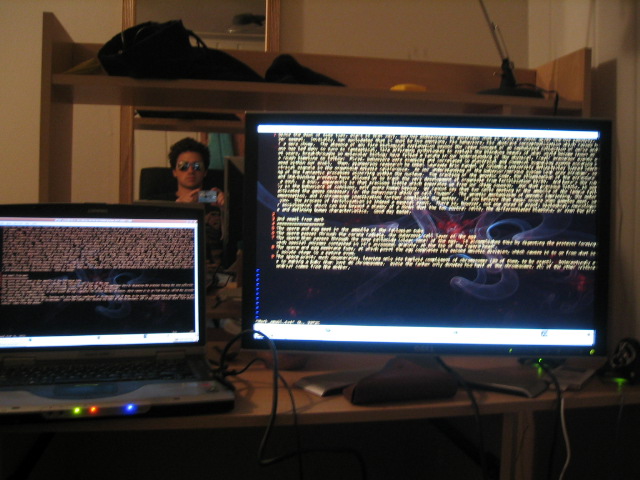
1) Got my awesome, awesome Dell 2407 monitor:


2) Ordered some parts off of newegg so I can use this montor at more than the crappy resolution of my laptop (and, y'know, for some other functionality...):
  • AMD X2 64-bit 3800+ CPU
  • Seagate 320G hard drive
  • Cheap LiteOn DVD burner
  • Cheap HP Deskjet printer
  • Cooler Master case (with 430W power supply)
  • Asus A8N5X Motherboard
  • PNY GF6600 AGP 256M Graphics Card
  • 2G Corsair RAM
And, all the accessories:
  • A blue keyboard with a superman logo emblazoned on it
  • Logitech (best company ever for cheap and excellent peripherals) optical mouse
  • Buffalo Wireless PCI card
  • Arctic Silver Thermal Paste (I never use the cheap stuff that comes on the cooling unit)
  • Power strip
All parts (save the monitor) clocked in at under 1000 bucks, including shipping and taxes. Can't wait to get my dirty little paws on it next week...

Update: screwed up on some stuff... RMAed the video card because it was the wrong interface (stupid! stupid!)... got a VGA XFX|GF 7300GS 256MB PVT72GWANG to replace it... and that keyboard is slim and lame... got a stripped down logitech one to replace it.