Saturday, August 19, 2006

XGL/Compiz

I saw my friend using XGL/Compiz on his laptop the other day and was instantly hooked. This technology enables really, really (Vista-like?) pretty graphics and some cool cube-virtual-desktop-switching functionality. Trust me, it's awesome, and once you see it in action, you'll never go back (compiz in action on YouTube). Unfortunately, it's really problematic to install and in heavy development. Needless to say, it's not the most friendly program(s) ever. I'm still trying to get it working on mine, but here's some info in case you want to check it out for yourself:

Links:

Keyboard shortcuts (once everything works...):
  • CTRL + ALT + Left/right arrow key. Switches to the new side of the cube for me.
  • CTRL + ALT + SHIFT + Left/Right arrow key- Takes the in focused app around cube.
  • CTRL + ALT + Left Click on Desktop - allows you to use the mouse to rotate cube.
  • F12 - uses the Expose like trick
  • Alt- Tab - switcher Vista-style
I'm using a Compaq Presario x1000 laptop with a Mobility Radeon 9200 Graphics Card. I start up and then it flickers between the line that says it's running the script /etc/rc.local in the terminal and the ubuntu login screen and a white screen. I also hear the ubuntu drums at the very beginning of this process. Eventually it tells me that there's a problem with the x server (not the garbled, usual problem with the X server output), I hit OK, and it takes me to the Ubuntu login screen. This is all very strange, since /etc/rc.local only has an "exit 0" in it and everything else is commented out. I guess it's not all that big of a problem since I can still log in and use my computer, but it's pretty annoying.

Update: Following these instructions gives me a bit better results, but still doesn't work. At least my computer doesn't go through the whole flickering screen dance but it still starts up with the checkered background while loading and the "X" for the cursor and only allows me to logout and not shutdown. I'm not sure exactly what that means, but I know it means something is funky with the X server. It's also really, really slow with graphics. Perhaps the next walkthrough I run across will be better? John also tried it on his IBM ThinkPad and he failed in his quest as well.

Second update: IT WORKS!!!! Check this unofficial guide out for the instructions I followed. I gather that theses ones are somewhat "safer" than others (no customization that I can find...) which is why it is on this authoritative page.

Third update: check out the sweet video below for a taste of compiz (no, the instructions that worked for me don't have some of the functionality shown, but it's still absolutely sick):


Fourth update: Compiz is installed, but not enabled, by default in Ubuntu 7.04. Enable it by going to the System->Preferences->Desktop Effects menu. There is a great guide to configuring compiz here.

Monday, August 14, 2006

File extentions, compression, and conversion

A constant problem I have is converting file formats from one to another to satisfy the powers that be. This is especially a problem with audio files. I don't want .m4p files from the iTunes store because those are DRMed, which restricts my fair use rights. I don't want .ogg because iTunes can't play them. (As you can see, iTunes causes a lot of problems, but I still have an iPod so... well, my next mp3 player will not be an iPod, for sure.) I've settled on converting all my music to .mp3 as a good compromise. The first step in converting files, my personal choices aside, is to find out what you want to convert to. Here are some sites with some good information:
Now for audio conversions. There's tons of stuff to do this for you on sourceforge and that you can pay for. But, if you don't want to take that route, there are a few key programs that you should know about. The big ones are mplayer, faad, and lame.

Saturday, August 12, 2006

Google Maps info

There's a lot of hype around "Mash-up"s, which is code for doing something with Google Maps. I took a look around and saw what I could find about this emerging phenomena:
Here are some sites that chronicle cool uses of Maps Mash-ups... there is a mash-up for everything, it seems: cheap gas, crime, etc... chances are, if you want it, it's there

Sunday, August 06, 2006

OpenSSH Installation, SCP, SFTP

Installation of OpenSSH was a breeze. Just one command from Breezy Badger (Ubuntu 5.10) server installed it on my server: apt-get install openssh-server. Now I can administer my box from anywhere! Yay! (provided, of course, no power outages, etc...)

To SSH into a server: ssh <username>@<ip address>

To upload a directory recursively (with encryption... blowfish is an encryption algorithm and scp stands for secure copy protocol, a utility available on almost all UNIX-derived machines): scp [-c blowfish] -r <source path> <username>@<target ip address>:<target path> To download over scp, switch the source and target.

For example, to upload from your music collection:
scp -r /home/<username>/Desktop/Musical/Music/Depeche\ Mode/ <username>@<server address>:/home/<username>/Musical/Music/

And to do the opposite (download a directory from the server, in this example to the current directory): scp -r <username>@<server address>:/home/<username>/Musical/ .

Another option is sftp which can perform ftp-like operations (including interactive sessions) over an ssh connection.

Links:
Manpages:

Simple admin commands

Here are some simple sysadmin commands:
  • To create accounts for users (the nice way), the command is adduser <user> which will create an entry in the etc/passwd file and add a home directory for that user (and probably some other stuff, too...)
  • userdel -r <user> delete accounts for users (the nice way) (-r means delete the home directory as well)
  • passwd <user> change a user's password
  • uptime tell how long a system has been running
  • du -h <file/directory> display a human-readable estimation of how much disk space something is taking
  • df -h display a human-readable report of file system disk space usage
  • ps report a snapshot of the current processes
  • ps aux (username, process ID, %CPU, %MEM, virtual memory used (pages), physical memory used, TTY, STAT (process state), date of start, time of start, command)
  • pstree display a tree of processes
  • arp display IP->MAC translation tables
  • acpi display battery status
  • shutdown -h now shut down, power down
  • uname print system information (kernel version, processor, etc)
  • whereis locate the binary, source, and manual page files for a command
  • locate find file names on the whole system FAST (if it's not finding a new file, run updatedb to update locate's index and then run locate again)
  • last -a show a listing of users that have logged into the system and from where
  • screen screen manager (very useful for doing heavy duty stuff on remote systems... see tip #7 of this post for details)
  • free -m display free and total memory in MB (RAM and swap)
  • fuser -v <file> show the user, PID, access type and command accessing of an open file (v for verbose)
  • lsof <file> for even more information than fuser
Important files/places:
  • /proc directory that contains a lot of hardware and system information

Server Building, Part 4 (vsftpd configuration)

Here is some information on configuring vsftpd 2.0.3 on Ubuntu 5.10 (Breezy Badger):

The settings for this program are in /etc/vsftpd.conf There is a short manpage for vsftpd ("man vsftpd" is the command) but the manpage for the file ("man vsftpd.conf") gives a more exhaustive description of options that vsftpd offers. Options are set in option=value form in the config file (example: "anonymous_enable=YES"). Most settings are not enabled if they are not found in the config file but there is some default behavior if some settings are not found. Check the manpage and FAQ for details. I'm mostly concerned with setting up access so that only I can get access to this machine. There are a few types of users in the FTP server paradigm: local users (that have an account on the machine), anonymous users (just anyone on the net) and root. Here are some simple options to set to achieve what I want to do:

Anonymous users:
  • anonymous_enable -- allows anonymous login, on by default
  • anon_upload_enable -- allows anonymous users to upload files... keep this off unless you want a lot of porn on your server (so they say)
  • anon_mkdir_write_enable -- allows anonymous users to use any form of the ftp write command
  • no_anon_password -- allow anonymous users to login without a password... probably a good idea to enable this, since the password is just "anonymous" otherwise

Local users:
  • local_enable -- allows local users to log in... I enable this so I can log in as myself
  • chroot_local_user -- restrict local users to their home directories (apparently a security risk... read the vsftpd FAQ for details)
  • chroot_list_enable -- enables a list of users that can use the chroot() command
  • chroot_list_file -- the location of the file that specifies the users that can use the chroot() command... with my settings, the users listed in this file have full access to the system whereas the users not listed are restricted to their home directories

Other:
  • ftpd_banner -- the message users see when they login
  • write_enable -- enable any form of FTP write (allow users to put stuff on server)

To restart vsftpd with an edited config file (that is, to see the changes you just made to the file put into effect) use this command: /etc/init.d/vsftpd restart

Saturday, July 29, 2006

Waseem comes to the Linux/Wireless rescue

Waseem just helped me configure my wireless on my Compaq laptop (that is now running Ubuntu Dapper Drake). Any network that is publicly accessible will be viewable (if, of course the wireless card/network is enabled) in the drop-down box in Network Setting --> wireless --> Properties. It will not automatically connect to any network it senses. Here is some command line wizardry to help configure wireless settings:
  1. Need to know name of network interface -- type in iwconfig to find that out (usually its name is eth1 or the like)
  2. Then you want to scan the nearby places to see what networks you can use -- iwlist < network > scan returns a list of potentially usable networks... it also tells you if you need an encyption key (password) to access the network
  3. To tell your network card that you want to use a certain network -- iwconfig <network> essid <name>
  4. Now to tell it the password (if neccesssary) -- iwconfig <network> key <password> (Waseem isn't sure if this is the same accross networks... some require hex keys, some require ASCII keys, etc.)
  5. Now you need to tell Linux "I want to start using this connection" -- ifconfig <network> up (of course, to turn it off, the same command with down instead of up)
  6. To get an IP address using DHCP -- dhclient < network >
  7. If you're not using DHCP, you need to tell ifconfig about the IP address request (Waseem isn't sure how to do this)
Command summary:
  • iwconfig -- configure a wireless network interface
  • ifconfig -- configure a network interface
  • iwlist -- get more detailed information from a wireless interface
Edit: As I've gotten to school, I've noticed a problem: for some reason my comp gets confused when there's multiple wireless networks with the same name; or, rather, one wireless network with multiple routers broadcasting the same network. I need to specify the router's MAC address if I want to connect. Here are the commands:
  1. Tell your interface that you want to roam on a network: iwconfig <network> mode Managed
  2. Specify the connection point: iwconfig <network> ap <MAC address>
  3. From here it's the same as any wireless connection: ifconfig <network> up
  4. Request an IP address: dhclient <network>

Wednesday, July 12, 2006

Server Building, Part 3 (FTP servers, commands)

Onto the software... there are a variety of FTP deamons to choose from, but these two seem to be the most highly regarded ones:
I chose vsftpd because I saw several message board threads which claimed that it was very easy to configure and incredibly secure.

Some other general FTP sites, for those interested:
I installed vsftpd with a simple "sudo apt-get install vsftpd" (thanks again, Ubuntu!). Two of the major issues one faces when setting up an FTP deamon (which basically allows certain people access to the server's file system depending on who they are and what the admin wants them to see) are what local users (users that have an account on the computer) can do and what anonymous users (strangers) can do. Variables in the etc/vsftpd.conf file that have "local" or "anonymous" or "anon" in them pretain to these issues. Use the command "man vsftpd.conf" to find out more about what commands you can put in the conf file. If you are configuring vsftpd, the faq page, in addition to the manpage, will be your best friend:
ftp://vsftpd.beasts.org/users/cevans/untar/vsftpd-1.2.2/FAQ

Here are some helpful admin commands to help set up the FTP server:
  • ifconfig display helpful TCP/IP information (including your IP address)
  • ping confirm a remote host is online and responding; I usually use "ping -c 4 www.google.com" to see if I'm connected on a certain computer
  • netstat info about network connections, routing tables, interface stats, masquerade connections and multicast memberships
  • host a DNS lookup utility
  • ip show/manipulate routing, devices, policy routing and tunnels
  • dig another DNS lookup utility
Here are some commands to query an ftp server:
  • ftp start the ftp prompt
  • bye close the ftp prompt
  • open open a connection with a remote host
  • close close the connection
  • get download a file from the server
  • put store a file on the server
  • Other commands to navigate on the server are similar to those that you use to move aroud regularly: ls, pwd, etc.
  • To do something on your local machine from the ftp prompt, prefix the command with an exclamation mark !
UPDATE: Some more helpful stuff, found via Ubuntu Linux Bible.
  • ? display all the commands the FTP server supports
  • bin enable binary mode, for transferring all binary files... most times this will get done automatically, but you don't want to have your music files corrupted when you transfer them in ASCII mode, do you?
  • hash print a hash (#) for every kilobyte transferred... good if you want to know if the server is transferring data or just hanging when there's no output
The good news is that the server is working. The bad news is that it is not accessible behind my building's firewall. I went to see the basement where all the wires go, but I don't think people would be to happy if I started unplugging stuff to test how the system worked. I'll ask the admin for more details when he gets off his vacation...

Saturday, July 08, 2006

Server Building, Part 2 (RAID setup)

Whoops! I forgot to get a CD drive for loading the OS. Silly me. A quick stop to Fry's (Palo Alto) solved this problem (I also bought some ribbon cable for connecting the new IDE CD drive to the motherboard).

A bit more tweaking of those small wires and... voila! Hardware is all working fine now. Then, a quick install of the CD drive and close everything up. Off to the BIOS!

Setting up RAID is really easy on Ubuntu 6.06 (Dapper Drake). I used this site as a guide. Just format 2 partitions as RAID partitions of equal size (but don't forget swap partitions as well!), select RAID 1 and you're off! I got through the minimal configuration and more significant waiting during the OS setup phase and now I have a command prompt just tempting me to use it. Right now I'm researching FTP servers. Stay tuned.

UPDATE: This site has a much more detailed RAID setup guide.

Thursday, July 06, 2006

Server Building, Part 1 (assembly)

I got my parts in the mail today (see last post)... to work!

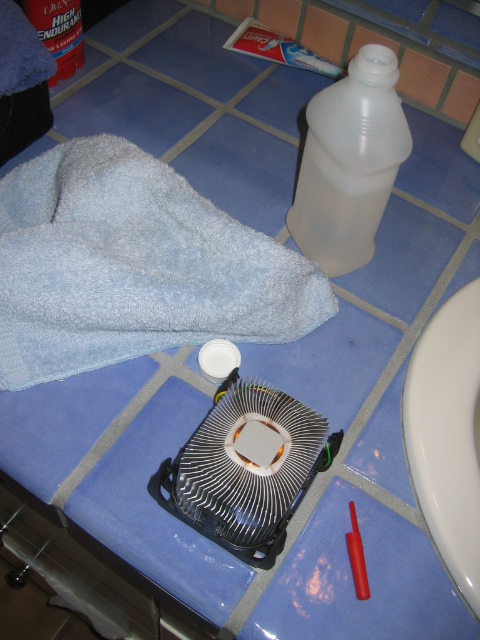
After unpacking all the parts, the first thing I did was to take the "thermal compound" that comes with the heatsink off with isotropl alcohol. There's nothing more annoying than cpus that overheat, which is what tends to happen with heatsinks that use this sorry excuse for a compound. Here is the heatsink ready for the slaughter... after this I smothered my own compund all over the cpu. Pencaps work well for both taking chunks of compound off and lathering them on (hence the red one in this photo):


Then I put the 2 memory sticks into the blue slots. Both the heatsink and the memory need a bit of muscle to install, especially the heatsink.

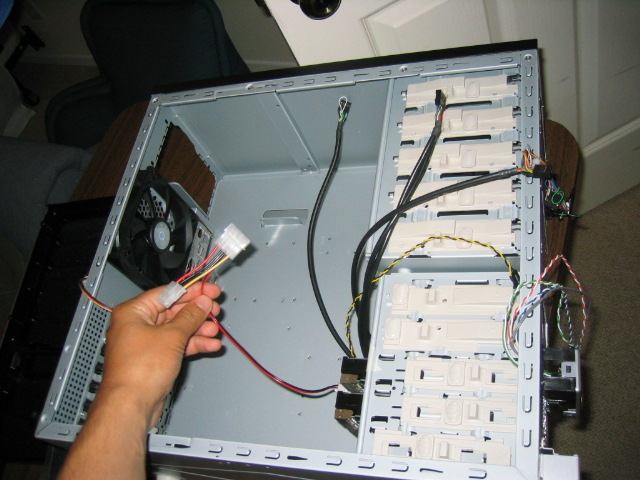
One thing to watch out for before installing the hard disks/anything else: in the Centurion cases, the wire that connects the fan to the motherboard can get stuck behind the casing easily (see photo below)... make sure that doesn't happen early as it will save you from removing a lot of stuff to get at it later.


Power supply installation is easy, just screw it in. Make sure the proper voltage is set, though, that could burn you later.

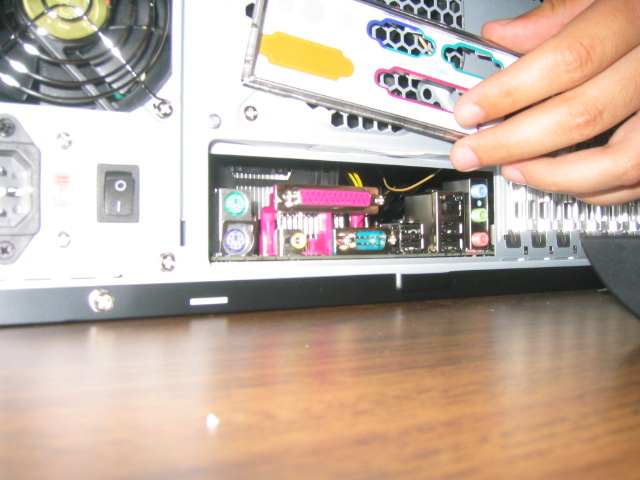
Motherboard installation: more screws, a bit of finesse. One way to line the screw holes up with the holes in the motherboard is to lay the motherboard down and take a permanant marker and mark the holes on the other side and then screw in screws in the marked holes. Be sure to bash out that pesky guard over all the USB ports, etc. on the case before you put the motherboard in:


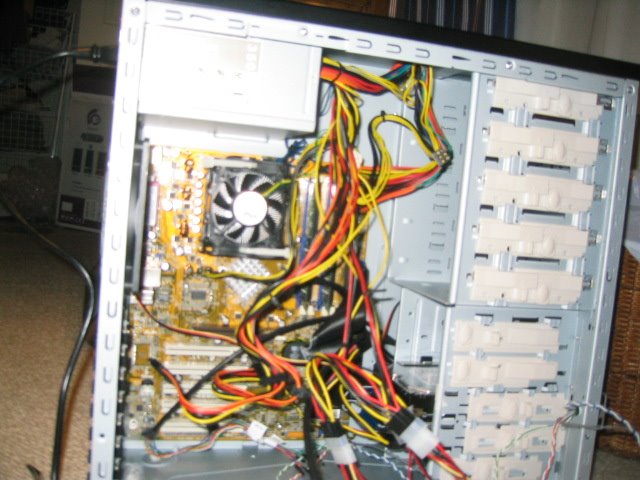
I then slid in the 2 hard drives. With that done, now comes the fun of connecting very very small parts. If my fingers were needlenose pliers, this would be easier. Check your motherboard manual for the details on what goes where. One thing that is always annoying is connecting the led, power, speaker, etc. cables correctly. In any event, it's starting to get a bit hairy in there...


Alright, time for the moment of truth... I turn it on (flip the switch on the back from O to | ) and the motherboard LED lights up, which means it's getting power. That's good. I hit the power button and... everything (fans, LEDs, etc.) seem to be working. Except there's two beeps instead of the healthy one. Hmmm. Time to loan one of my monitors from my current PC to this one to figure out what's going on...

Monday, July 03, 2006

Ordered server hardware

I began my quest of building a file/web server today... here are the purchases I made from the fabulous (and cheap, and convenient, etc.) newegg:
  • CoolerMaster case: I already have one of these for my primary desktop... very good design with the "tool-less" install
  • 2x256 Corsair memory sticks: Basically, the cheapest reliable memory I could find
  • Asus P4S800D Motherboard: Again, cheap (and hopefully reliable) motherboard
  • Antec SP-350 Power Supply: cheap power supply
  • Intel Celeron D310 2.13GHz processor: The cheapest processor I could find... (more than 2 GHz these days!)
  • Rosewill RK-680 USB Keyboard: cheapest keyboard I could find
  • Evga MX4000 Graphics card: cheap graphics card
  • 2 Seagate 300GB hard drives: these 2 babies account for almost half the price of the total package

The total for all of this stuff is around $550. I'm planning to set up apache and a file server on this baby, along with RAID 1 so I don't lose any of those valuable, valuable mp3s.

Sunday, June 25, 2006

First Post/Statement of Purpose

Hello. I'm a computer enthusiast who may or may not be interning at a Silicon Valley tech company this summer during the break in between my junior and senior years at an East Coast university. The intent of this blog is to share tech stuff (setups, advice, etc.) that I go though for the benefit of the community (and myself, when I can't remember how I did something). However, I will also throw in tidbits about other things I find interesting: my life, politics, metal \m/, college, work, etc. I make no guarantees about the regularity with which I will update this page. However, I do guarantee that the content will be of impeccable quality.

Areas of (hopefully-to-be) expertise (I guess "interest" would be a better word right now, but oh well...) are: Ubuntu Linux, VIM, Python, web design, networking, building computers/servers, coding, 1337sp33k etc.

Oh, and in case you were wondering, chainlynx is my (somewhat childish and ill-conceived) hacker alias. There's no real reason that I chose this name, besides the 1337 misspelling. In fact, I didn't even know what Lynx was until after I had adopted it.