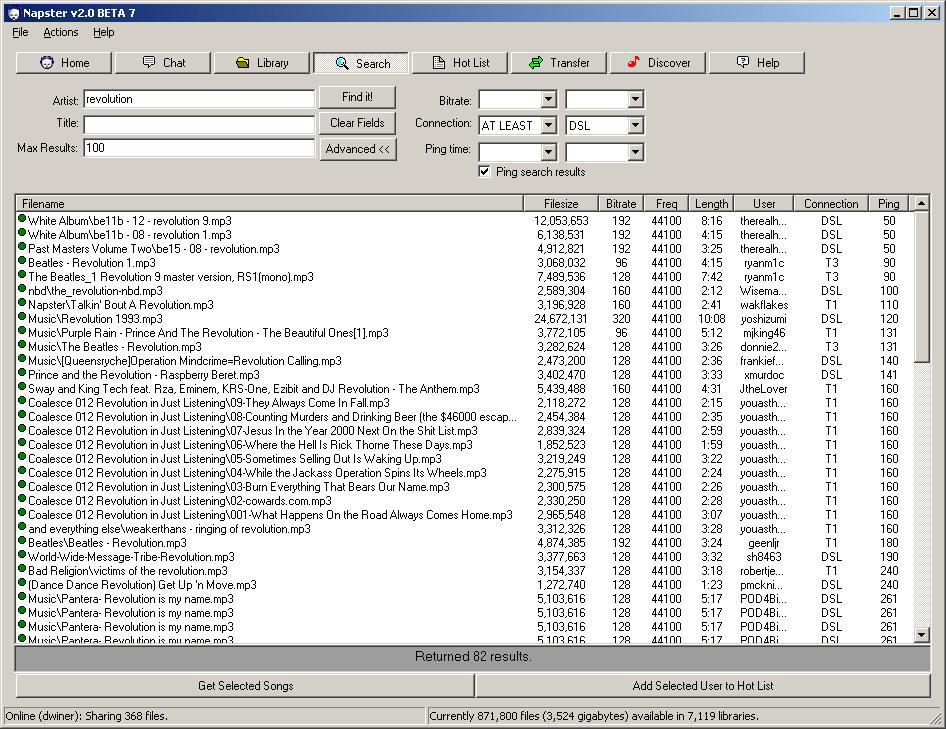
Video DownloadHelper can download videos from YouTube (or other video sites) and convert the audio to mp3 (or other formats) using ffmpeg (the default). Pick the mp4 (high quality / high definition -- these are format 18 or 22) videos off of YouTube to get the highest quality audio (128 kbps).
Ah, this brings me back...
Update: Even better, now that Lala, et al are providing music streaming straight from a Google search, one need not even bother with YouTube -- faster download/conversion, and same (better?) quality.
Showing posts with label firefox. Show all posts
Showing posts with label firefox. Show all posts
Monday, August 24, 2009

Friday, April 20, 2007
Feisty Fawn customization
Here are the things I did after I installed Feisty Fawn Ubuntu 7.04 off of the alternate install CD on my Compaq X1000 laptop/other systems.
If on an AMD64 processor system
If on an AMD64 processor system
- Follow these instructions (and run the script) to get mplayer, flash and java support for firefox. Update all launchers and shortcuts to launch firefox32 instead of firefox
- Skip the remaining instructions that are italicized
Install add-on packages (by the way, all except the first can be done in one command... just append all the packages you want to install after "install")
- Edit /etc/apt/sources.list following these instructions to add extra repositories
- Install full Vim support (without this, no help, syntax highlighting, etc.) sudo aptitude install vim-full
- Install Flash sudo aptitude install flashplugin-nonfree
- Install media codecs sudo aptitude install gstreamer0.10-ffmpeg gstreamer0.10-gl gstreamer0.10-plugins-base gstreamer0.10-plugins-good gstreamer0.10-plugins-bad gstreamer0.10-plugins-bad-multiverse gstreamer0.10-plugins-ugly gstreamer0.10-plugins-ugly-multiverse w32codecs
- Install Amarok sudo aptitude install amarok
- Install Java sudo aptitude install sun-java6-jre sun-java6-plugin sun-java6-fonts
- Install Azureus sudo aptitude install azureus (or, alternatively, ktorrent)
- Enable DVD support
- Possible user programs: xmms, xchat, mplayer plugin, vlc, skype, picasa, eclipse, google earth, beagle, clipboard manager
- Security programs: sudo aptitude install nmap kismet wireshark airsnort aircrack-ng john
- Install Beryl (nVidia) (I also find it convinient to add a sessions entry for beryl-manager so the stone shows up in the tray)
- Add desirable extensions
- Customize Google toolbar
- Edit /etc/hosts to block ads
- Install multimedia plugins
- Change default colors Edit->Preferences->Content->Colors
- Set a master password Edit->Preferences->Security->Use a master password
- Either create a new profile or edit the current profile
- Disable General->Show menubar by default in new terminals
- Set Colors to aesthetically pleasing values
- Set Effects->Transparent background and set the bar about 2/3 of the way to Maximum
- Set Scrolling->Scrollback to 2000 lines
- Edit ~/.bashrc
- Edit ~/.vimrc
- Put the line set editing-mode vi in ~/.inputrc (the configuration file for readline... this also makes the set -o vi in the .bashrc redundant)
- Fix the Right Alt key System->Preferences->Keyboard->Layout Options->Third level choosers->Press Menu Key to Choose 3rd Level
- Change the Desktop Background by right clicking on it (good backgrounds here (OSX Tiger) and here (fractals) and at DeviantArt)
- Map the Windows keys to do something cool in System->Preferences->Keyboard Shortcuts (I think "Run a terminal" and "Hide all windows and focus desktop" are good candidates)
- Enable visual system beep System->Preferences->Sound->System Beep->Flash Window Titlebar
- Make the panels transparent Right Click on Panel->Properties->Background->Solid Color and adjust the slider appropriately (about halfway looks good)
- Add the system monitor to the panel Right Click on Panel->Add to Panel->System & Hardware->System Monitor->Add to Panel (I enable all but "Load"... wtf is load?)
- Disable launching of unnecessary programs at startup (such as Evolution Alarm Notifier) Preferences->Sessions->Startup Programs
- Save your session in a desireable state: gnome-session-save (don't use the automatic option in Prefs->Sessions... it causes problems!)
- Put the panels in a desirable place by dragging them across the screen
- Get 4 workspaces Right Click on Workspaces on Panel->Preferences->Number of Workspaces
- Disable Rhythmbox launching upon iPod detection (Amarok rulez!) System->Preferences->Removable Drives and Media->Multimedia->Uncheck "Play Music Files when Connected" and also Uncheck Storage->"Browse removable media when inserted"
- Enable the text-based location bar in Nautilus (in favor of the button-based one) by hitting the notepad button on the top left in a Nautilus window
- Configure Wireless Networks
- In /etc/default/acpi-support set ENABLE_LAPTOP_MODE=true
- All the latest stable versions of software in the repos, obviously
- GNOME network manager manages wireless devices by default (and keyring support to boot)
- Fool-proof support for installing restricted drivers, media codecs, etc.
- Nice command line assistance if you try and run software that's not installed (prints a "use this repository and this command to get the software"-type message)
- Easy enabling of "Desktop Effects"
- And more
Wednesday, March 14, 2007
Google Toolbar 3 has made my life 1.7% better
Google Toolbar Version 3 rules. It is a tiny little piece of technology that has made my life significantly better since I started using it. Linux users will have to go the extra mile (or in this case, inch) to make sure it works (nothing new...). See this thread and Google's toolbar for Linux page for instructions for older builds; apparently it appears to be playing nice now.
The coolest feature of the Toolbar is the ability to make custom search buttons. Going to any page with a search bar, right clicking, and selecting "Generate Custom Search" will create a nice little button on the Toolbar (corresponding to a site's favicon). Using this, you can search with the Toolbar as if you were on the page you generated a search for, the effect being that you never need to visit the page to use their search engine -- you can search from any arbitrary page! It's also useful for doing the same search (i.e. "Donnie Darko") over several sites you have a custom search (i.e. RottenTomatoes, IMDB, Wikipedia). If you don't know what buttons you want on your Toolbar, Google has provided a nice grab bag to choose from. My custom searches (as of right now) are:
A couple of things that could use improvement:

The coolest feature of the Toolbar is the ability to make custom search buttons. Going to any page with a search bar, right clicking, and selecting "Generate Custom Search" will create a nice little button on the Toolbar (corresponding to a site's favicon). Using this, you can search with the Toolbar as if you were on the page you generated a search for, the effect being that you never need to visit the page to use their search engine -- you can search from any arbitrary page! It's also useful for doing the same search (i.e. "Donnie Darko") over several sites you have a custom search (i.e. RottenTomatoes, IMDB, Wikipedia). If you don't know what buttons you want on your Toolbar, Google has provided a nice grab bag to choose from. My custom searches (as of right now) are:
- Google Image Search
- Google Groups (usenet)
- Google News
- Google Maps
- Google Docs & Spreadsheets (online word processing + spreadsheets) (
- Google Linux Search
- Google Calendar
- Gmail
- Google Reader (RSS reader)
- IsoHunt (torrents)
- Newegg (hardware)
- RottenTomatoes (movies, especially reviews)
- IMDB (movies)
- Gamespot (video games)
- Amazon (everything)
- YouTube (videos)
- MusicBrainz (music metadata and info)
- Wikipedia (online encyclopedia)
- Yelp (local search and reviews)
- Allmusic (music reviews and metadata)
A couple of things that could use improvement:
- More keyboard shortcuts (as mentioned above)
- Web spam reporting buttons, analogous to the "Report Spam" button that Gmail has... perhaps Google can build a database of splog, etc. sites to blacklist, or maybe work with other search engines to do so?
- Sometimes the "Generate Custom Search..." option doesn't work... amazingly, Blogger is one of those examples... when trying to do a custom search on a particular blog, I get this (wtf?): "Information Unavailable The custom button cannot be installed. Custom button values out of range."

Thursday, August 24, 2006
Firefox: Extensions and more
Here are some sweet Firefox extensions that I use (if this list isn't enough for you, there's more of them on the Extensions Download Page ):
- Colorful Tabs An easy way to distinguish between tabs when you have a million open
- Customize Google a MUST HAVE for frequent users of all Google services... ad blocking, encryption, etc.
- del.icio.us Social bookmarking site button in your browser! For those of us sick of managing bookmark files. (The classic (worse) version is here)
- FireBug If you develop web pages without this, you are either uninformed or massochistic
- YSlow Yahoo tells you why your site is slow (runs on top of FireBug)
- FireFTP: Why didn't someone think of this sooner? Great idea and execution of an FTP client within a browser.
- FireGPG Use GPG to encrypt, sign and decrypt email (or any web page text)
- Google Toolbar 3 Absolute bliss... allows you to add any arbitrary search box as a button in the toolbar and lots of other sweet features that I will not know how to part with
- Greasemonkey Inject arbitrary Javascript into a page; a great vault of these scripts is found at userscripts.org
- Nuke anything enhanced Ahh, the pure bliss of deleting something annoying off of a page. Unfortunately, it doesn't seem to want to work with Flash...
- Viamatic foXpose An OSX-style feature; puts all of your tabs into view at the same time when you hit a button in the chrome of your browser
- Video DownloadHelper this extension + YouTube = Napster
- Forecastfox Have to put this one in; my buddy Jon wrote it: displays the local weather in your toolbar
- Fasterfox Increases your browser speed a minuscule amount and has more popup-blocking capabilities; a good review of it here
- Chickenfoot Greasemonkey++; saw this demoed... it's great, and only getting better; lots of applications throughout the interweb world
- Bugmenot Great for getting past login pages that you don't have a login or password for. This activity is illegal, also, perhaps?
- Adblock Does what it says. Allows contextual filtering of unwanted material from web pages
- Showcase The same idea as Viamatic foXpose, different implementation.
- SessionSaver Saves your tabs, text input, etc. from when firefox last closed and reinstates them in your next Firefox session
- Flashblock: 99% of the time, when a web site uses flash, you don't want to see it. This replaces the flash output with a little button that, if clicked, allows you to see the desired content
- WebDeveloper: Useful for those who need to debug web pages
- DownThemAll Great for pulling large quantities off of one page (for me, I use this mostly before I know I'm going to be stranded without internet access for a while)
- Chatzilla IRC client within the browser (FAQ)
- MeasureIt For measuring pixels, etc. on your browser screen... simple, but useful
- View Source Chart for visualizing HTML blocks in the code source
- Vimperator vim-like commands for Firefox
- BetterPrivacy prevents Flash cookies from being stored on your computer
- A lot of these are taken from this Wired news article: The Firefox Hacks You Must Have
- Joel on Software (he likes Adblock, Web Developer Extension and IEtab)
- Computerworld
- For tweaking Firefox 2 to your personal satisfaction: Lifehacker's top Firefox config tweaks (mostly deals with about:config) and Computerworld's guide
- To search for something real fast, use the forwardslash key as in vi (or the single quote if you only want to search for links on a page). Ctrl+G moves you forward and Ctrl+Shift+G moves you backwards in searches.
- Here are instructions for installing firefox 2 on older Ububntu distros (pre-Edgy) that have 1.5 installed by default.
- For Google-Toolbar-like quickness built into Firefox, right click on your favorite search box and select "Add a keyword for this search"... you'll then be able to search, if you alias search to "g" for example, Google by typing "g <query>" in the URL box
- Set a master password for logging into sites: instructions here
- Get the source of a Firefox extension with these instructions
Subscribe to:
Posts (Atom)